Disable Shopify's default shipping notification emails
If shipping notifications emails will be sent via Klaviyo or another provider, turn off the Shopify transactional shipping emails to prevent your customers from receiving duplicate emails.
Step 1: Disable the Order Confirmation or Shipping Confirmation emails
Note: Shopify limits the ability to disable these emails to shops on the Shopify Plus plan. Shops on Basic, Grow, and Advanced plans should skip to step 2.
Due to the importance of the both the order and shipping confirmations emails, Shopify does not give you the ability to deactivate these emails directly from your account, instead, they will turn these off for you. Simply reach out to Shopify support or your account manager in order to get approval to deactivate these notifications.
Step 2: Disable Shopify's Out for Delivery and Delivered notifications
Note: This step is only needed for shops that plan to send Out for Delivery and Delivered emails via Klaviyo instead of Shopify.
In Shopify, go to Settings > Notifications
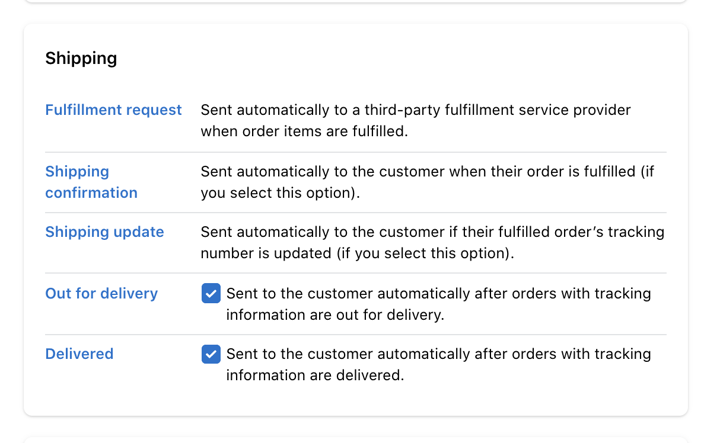
Scroll down to the Shipping section and untick the checkboxes for Out for Delivery and Delivered.
Uncheck the check boxes next to the emails you'd like to turn off.
Step 3. Turn off the "Track with Shop" button on Order Confirmation
The Shop App by Shopify is a great benefit for customers who wish to track all their orders in one mobile app. However, if you intend to send shipping notifications via your own email or SMS, you may want to disable the Shop feature (note: if a customer already has the Shop app installed, they may still receive push notifications on their order).
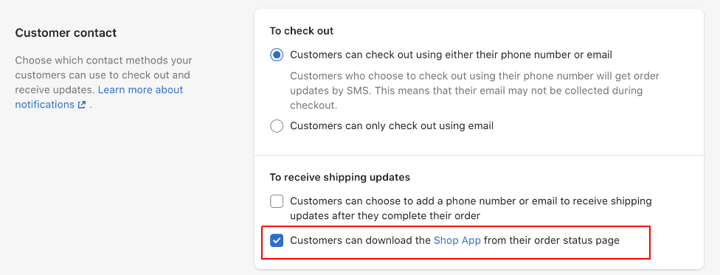
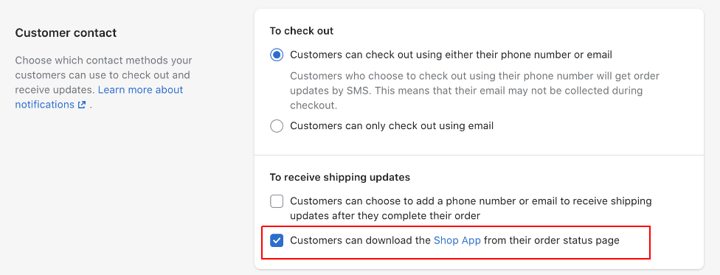
Shopify leaves this set to ON as a default setting. To disable, go to Settings > Checkout and then under Customer Contact, uncheck the box next to "Customers can download the Shop App from their order status page"