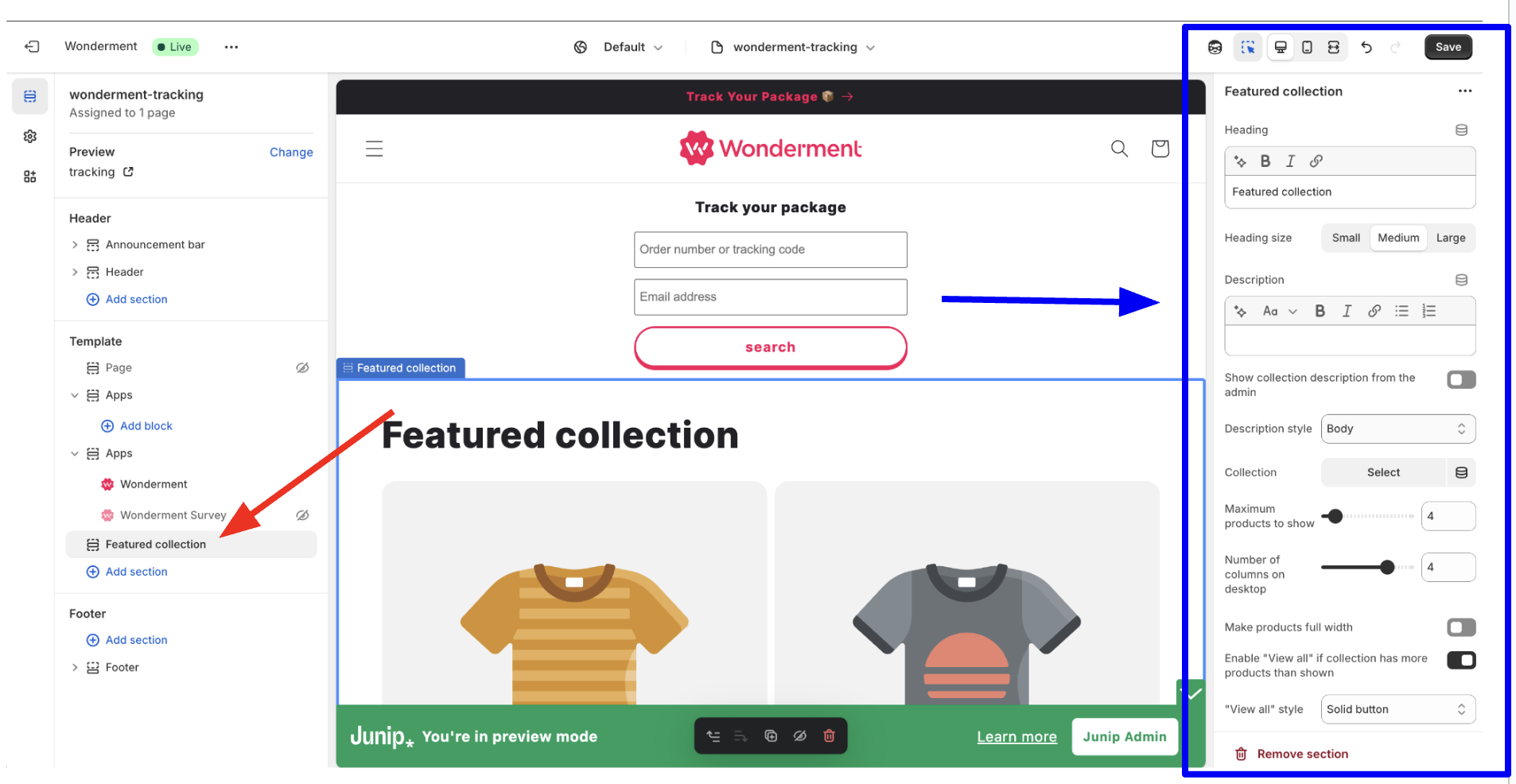
How to Edit or Update Your Tracking Page
If you would like to update or edit your tracking page, here's a guide on how to do so!
The Tracking page is edited in one of two places, depending on what you'd like to edit.
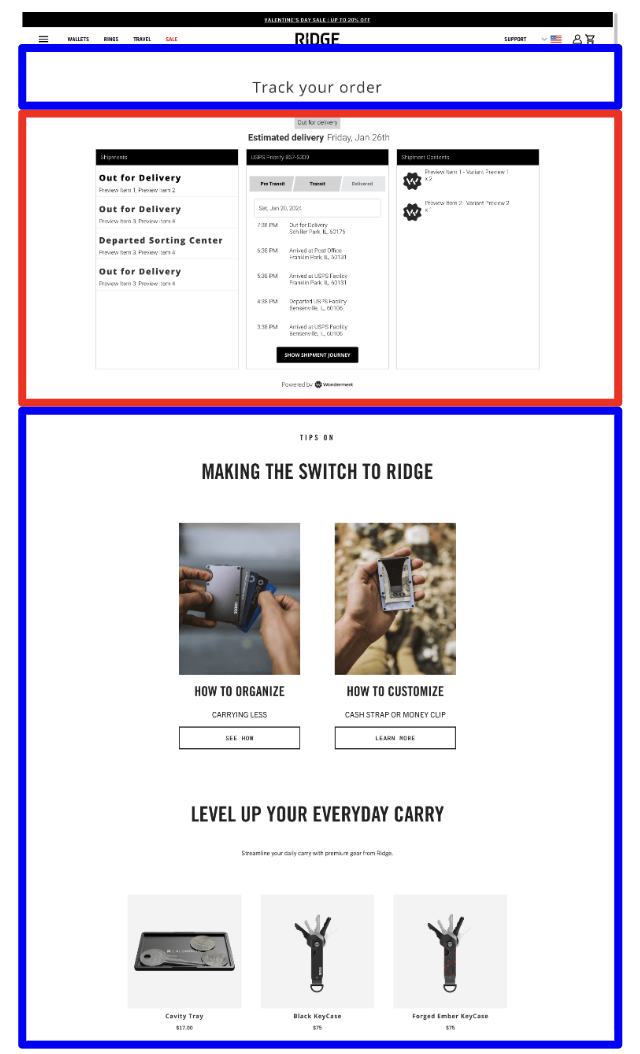
The Three Column block (red box below) can be edited within Track. The rest of the page (blue boxes) is edited just like any other Shopify page!
Update the Hero Image

To update the hero image (highlighted in red above), you'll want to log into Track, Select "Storefront Tracking" and then "Design Block"
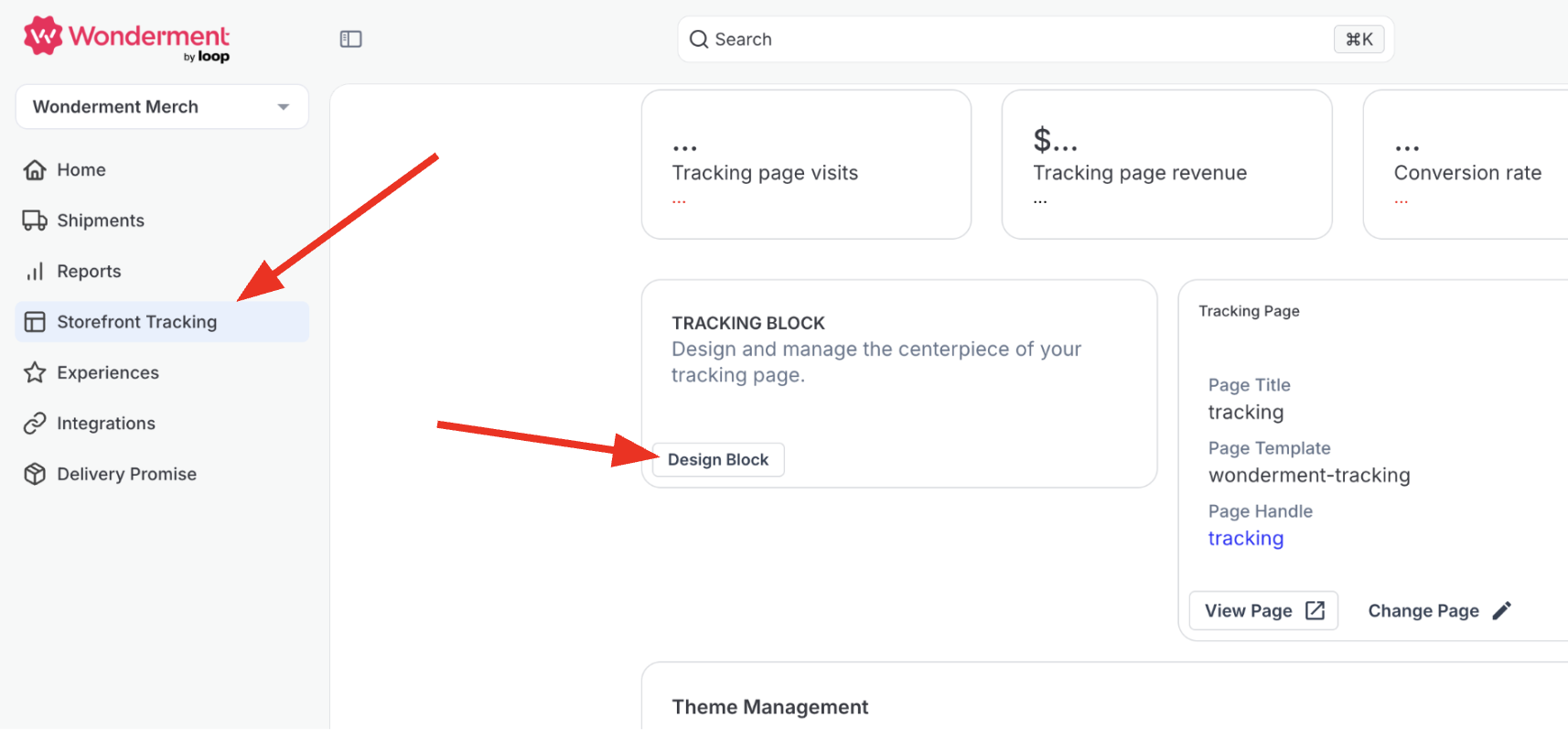
Then, you will want to select "Hero Image -> Image" to bring up the Image Block Editor:

Here, you can replace the Image URL to swap out the image. You can also add or update the image link if you'd like to make the hero image clickable!
Update FAQs / Collection
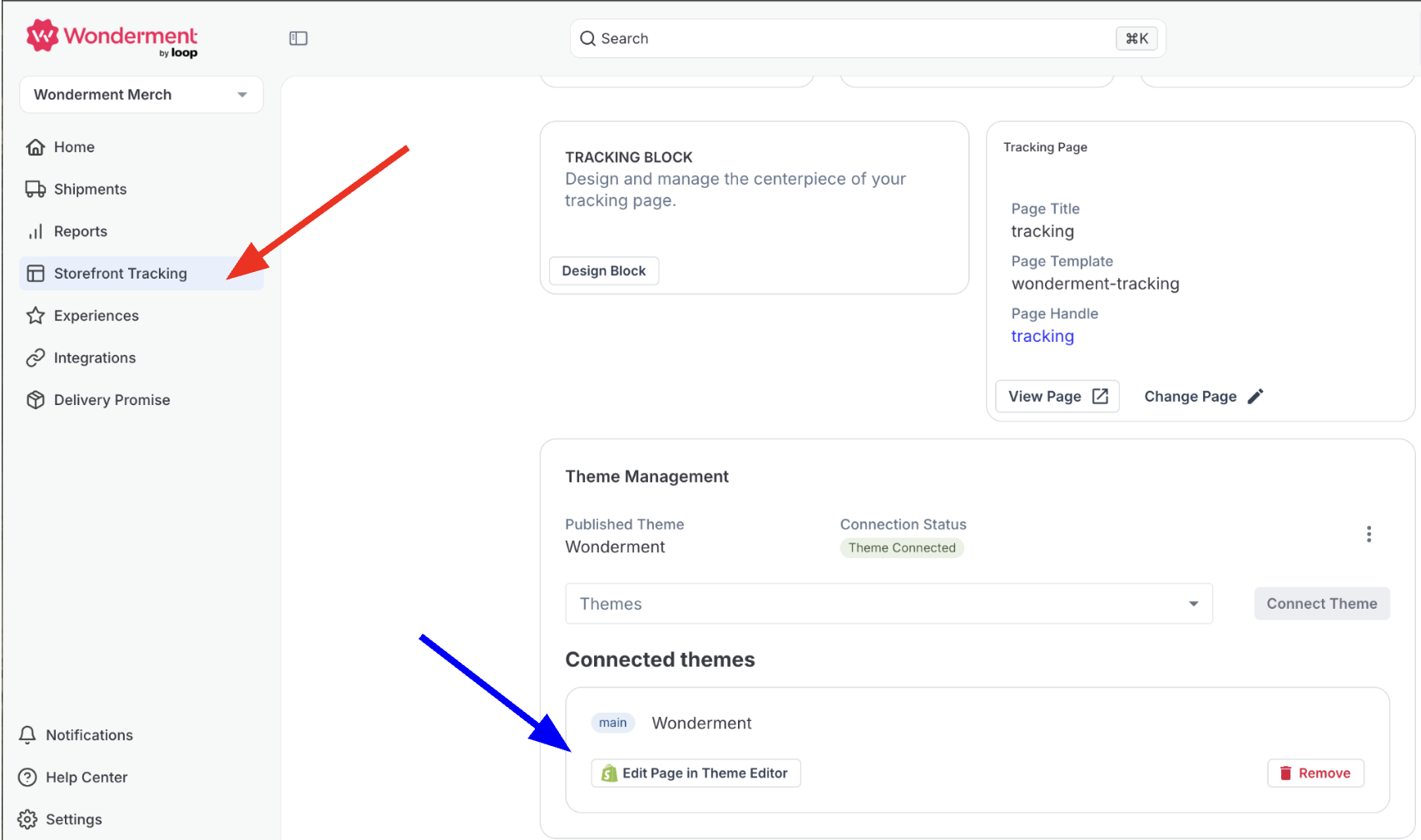
To edit the rest of the page, you will again access the Storefront Tracking Section of Track and scroll down to the "Theme Management" section. Select "Edit Page in Theme Editor".
Adding Elements
This will bring you to your current tracking page in Shopify, which can be edited just like any other Shopify page. Select "Add Section" to add additional elements (like SMS capture):
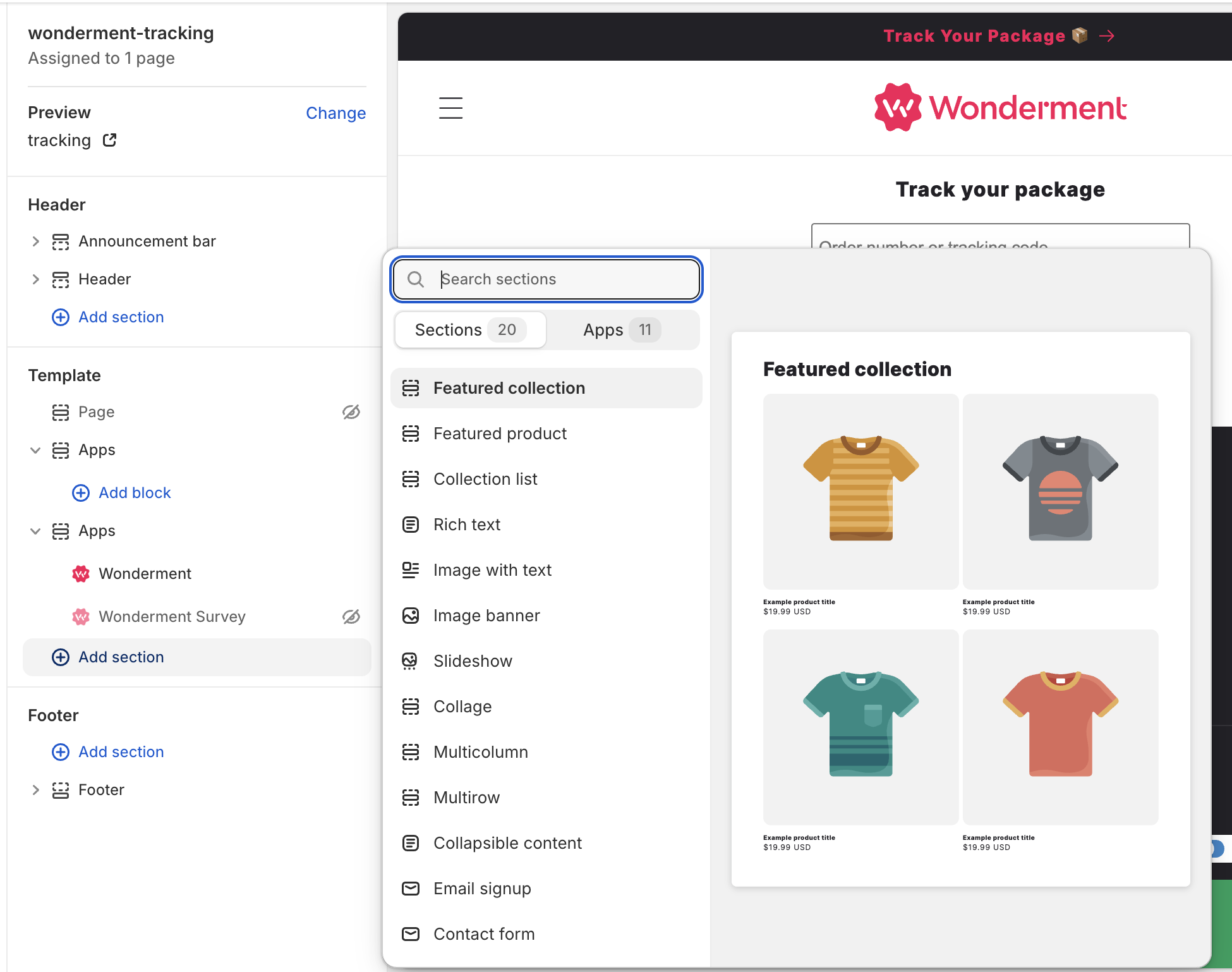
Updating/Changing Elements
To update any elements, simply select the section you'd like to update, and make the changes to the section like any other Shopify Section.