Tracking Page Quick Launch Guide
A step-by-step guide to taking your tracking page live.
Install Track.
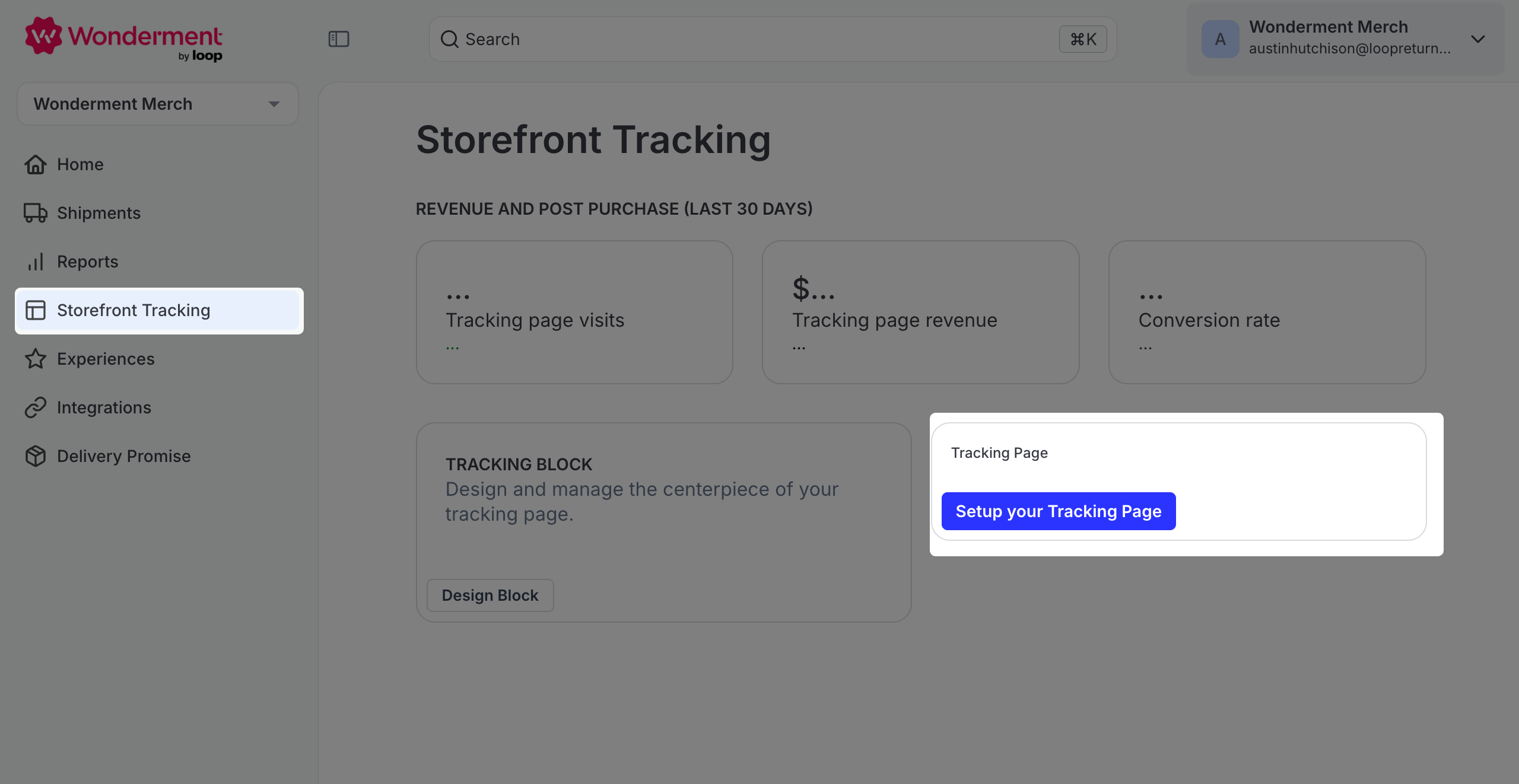
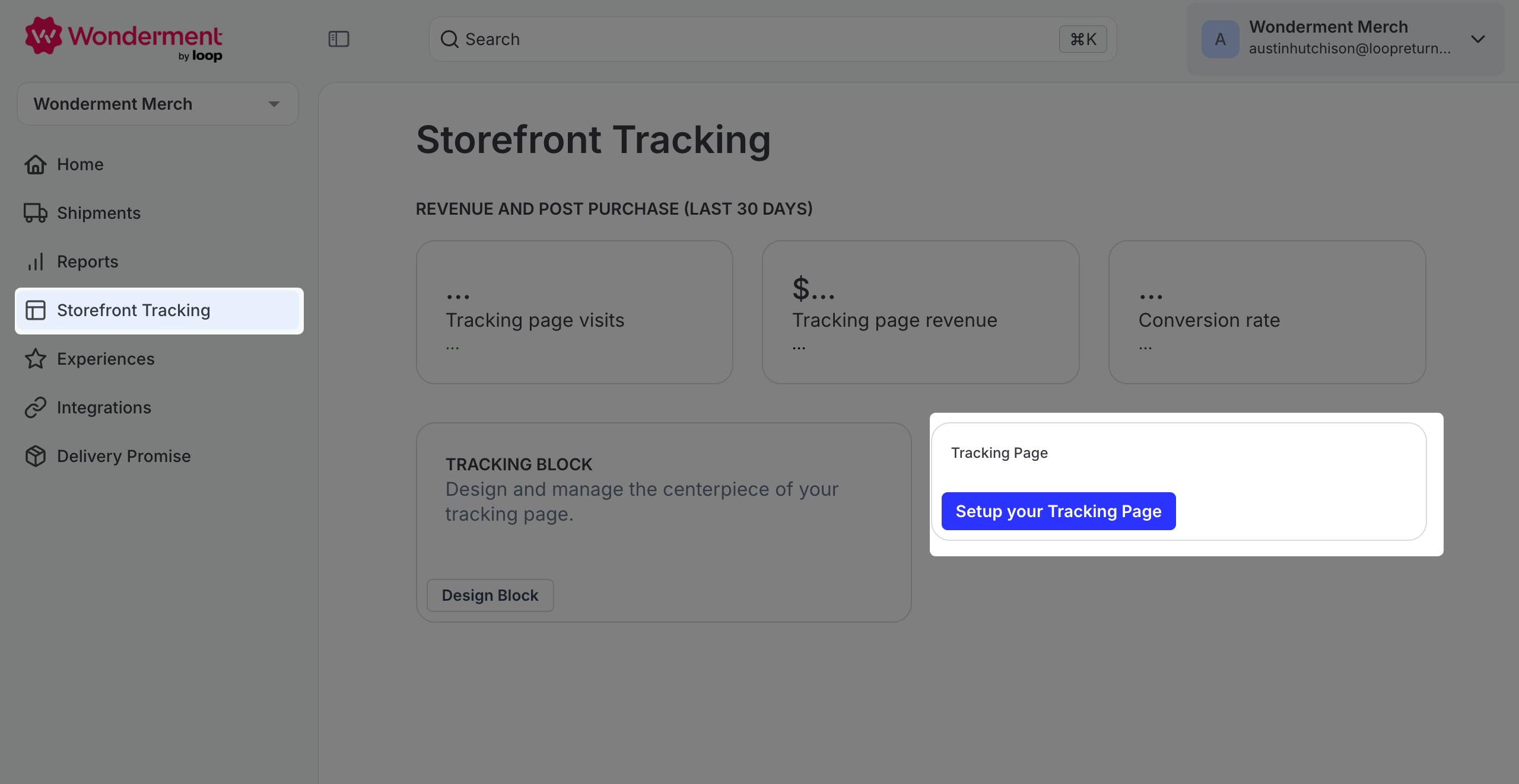
Navigate to the Storefront Tracking tab of the Track Admin.
Click "Setup your tracking page", where you can choose to create a new page in Shopify, or connect an existing one.
Click Connect a theme, this adds the
page.Track-tracking.liquidtemplate to a theme, and optional theme sections.Click Design Block, to customize the look and feel of your tracking block.
Customize your tracking block through the settings provided by each component.
Test the appearance of different statuses using the Status Chip and make color adjustments in the Global Styles section of the Editor.
If further customizations are required, make them in the CSS Editor pane.
Save and publish your tracking block. This will update the appearance of the Track App Block you added earlier. Exit the Tracking Block Editor.
Edit the rest of your Tracking Page in Shopify by clicking "View in Shopify" Explore other sections your theme provides by selecting Add section and complete any setup additional sections require.
Save your work and navigate back to the Storefront Tracking section of the Track Admin.
See your tracking page by clicking View Live Tracking Page.