Launching Track with Klaviyo
Step 1: Mark emails as transactional
In Klaviyo go into a Track flow and click on the email.
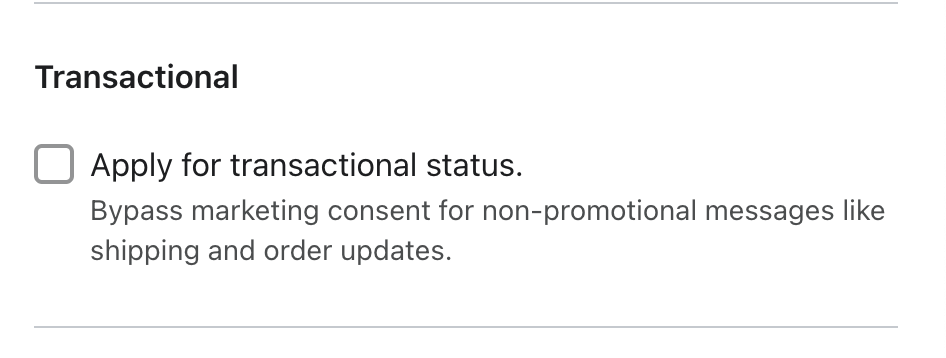
Scroll down until you reach the "Transactional" section of the Email Details.
Click "Apply for Transactional Status"
Repeat these steps for each email in the following flows:
01 | Track | Shipping | Shipment Created
02 | Track | Shipping | Shipment Picked Up
03 | Track | Shipping | Out for Delivery
04 | Track | Shipping | Delivered
05 | Track | Shipping | Stalled Shipment
06 | Track | Attempted Delivery
Note: Do not move onto step 2 until the emails have been confirmed as transactional by Klaviyo (usually within 24 hours).
Step 2: Track-Exclusive Emails
The following emails are Track-data driven emails and do not have a corresponding email in Shopify:
05 | Track | Shipping | Stalled Shipment
06 | Track | Shipping | Attempted Delivery
07 | Track | Shipping | Returned to Sender
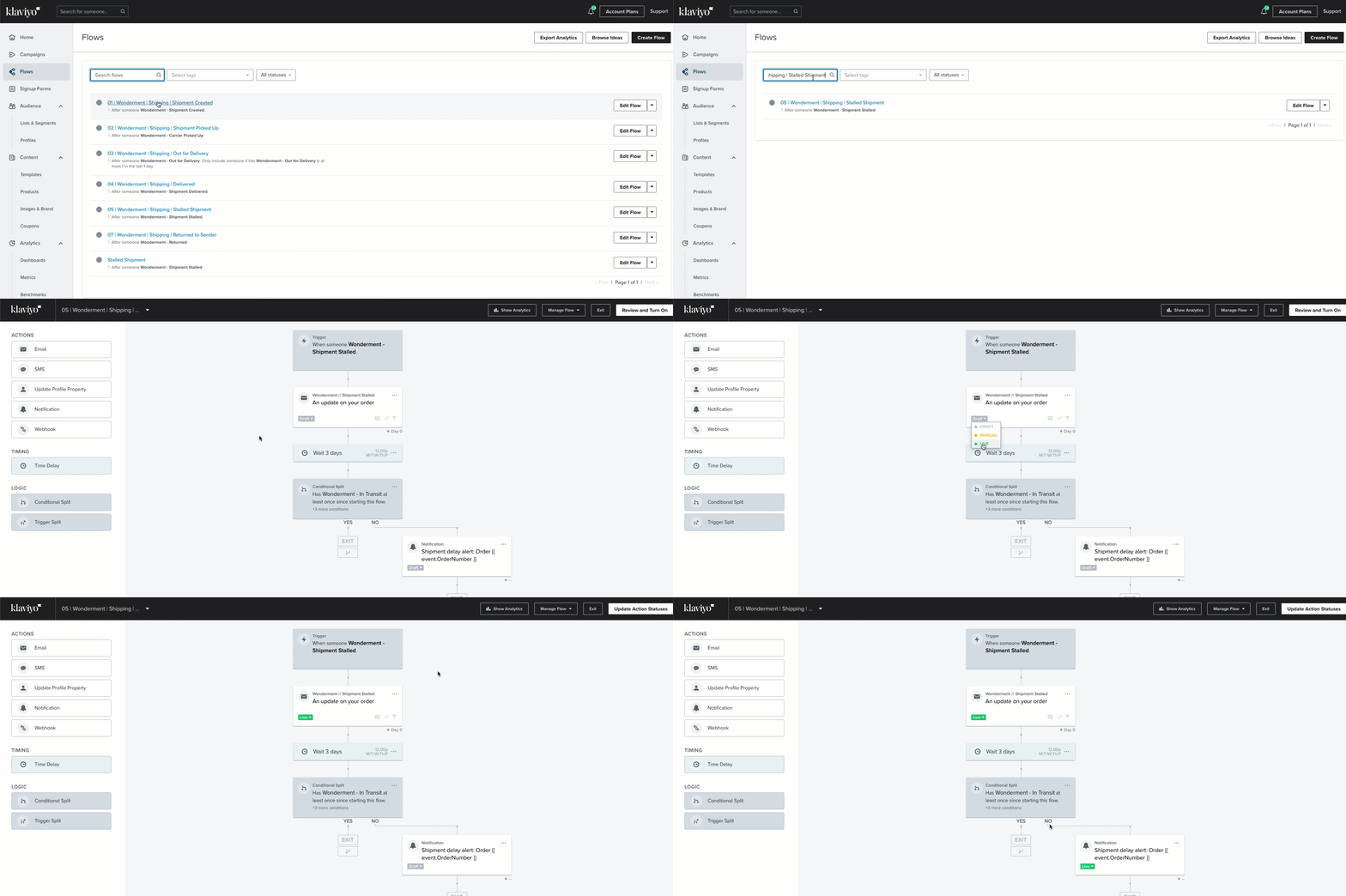
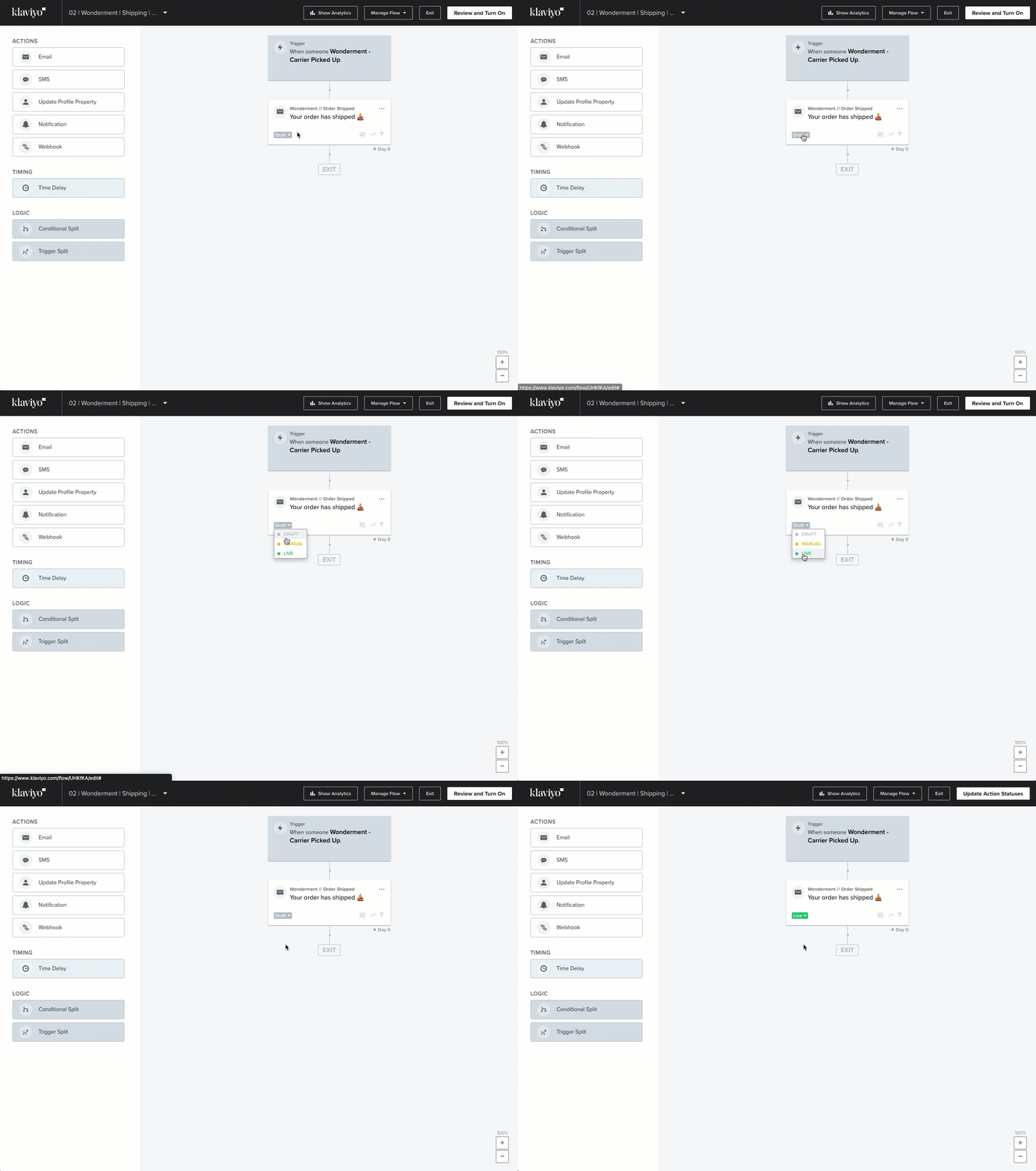
To set these live, simply locate each of these flows in your Klaviyo instance, click Review and turn on in the upper-righthand corner, and then click Save.
Step 3: Out for Delivery & Delivered Emails
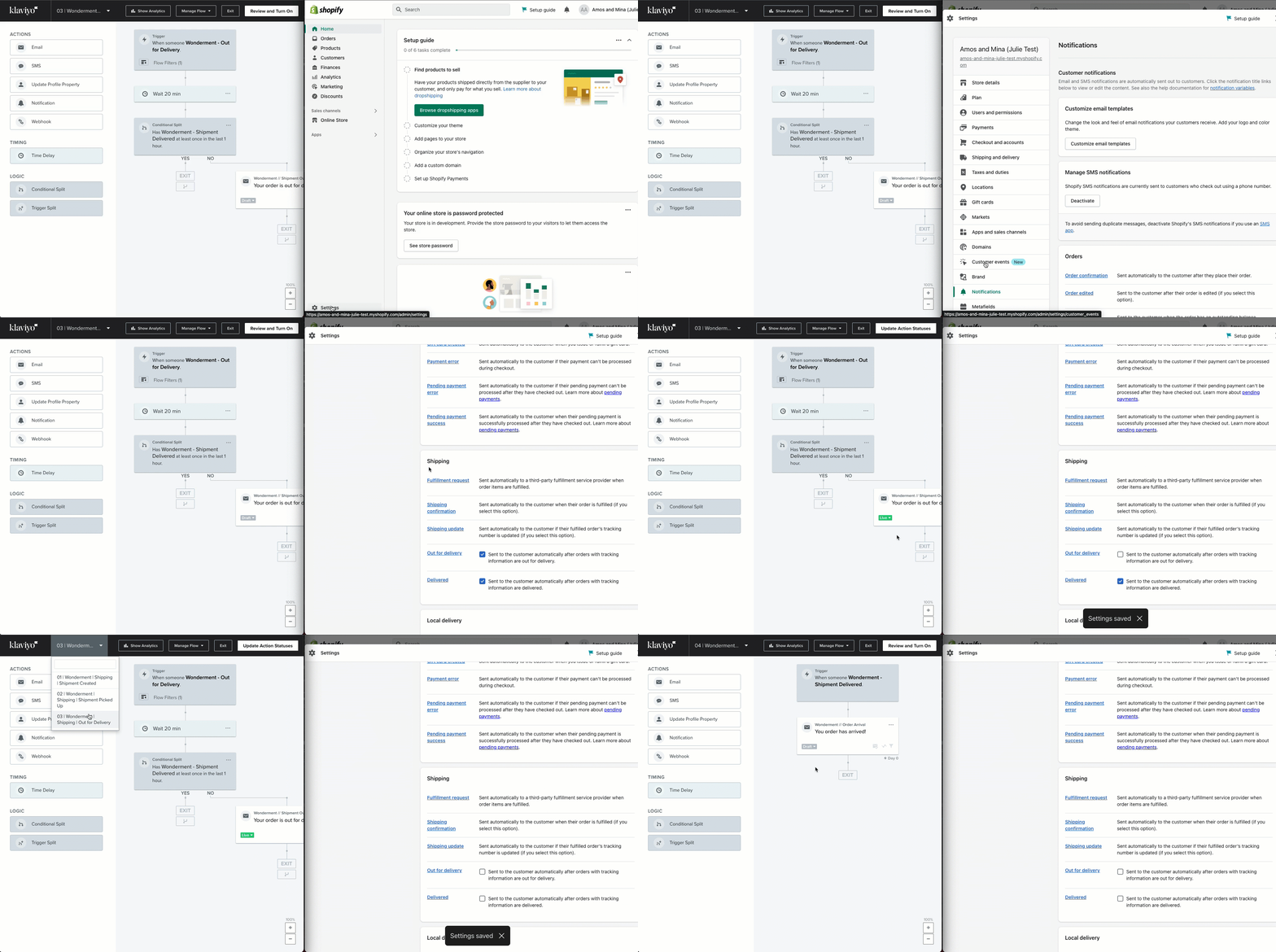
In this step, you will turn off the Shopify Out for Delivery and Delivered Emails and immediately turn on the corresponding Klaviyo flows.
Shopify | Klaviyo |
Out for Delivery | 03 | Track | Shipping | Out for Delivery |
Delivered | 04 | Track | Shipping | Delivered |
In Shopify, navigate to Settings -> Notifications and scroll down to the Shipping section. Deselect the Out for Delivery and Delivered emails. Immediately turn on the corresponding emails in Klaviyo using the steps above.
Step 4: Shipment Confirmation Emails
This step will vary depending on if you are on Shopify Plus or a different Shopify plan. Select the correct Shopify plan you are on below:
Shopify Plus
Due to the importance of the shipping confirmations email, Shopify does not give you the ability to deactivate these emails directly from your account, instead, they will turn these off for you.
Reach out to Shopify support or your account manager in order to get approval to deactivate the Shipping Confirmation notifications. We recommend chatting into to Shopify Support to get an instantaneous response.
Once Shopify confirms they have turned off the Shipping Confirmation email, in Klaviyo, turn on either 01 | Track | Shipping | Shipment Created or 02 | Track | Shipping | Shipment Picked Up emails.
Note: If the time between your shipment fulfillment and shipment confirmed events are more than one day, you may choose to turn both of these emails on. Please reach out to Track support if you have any questions about which email(s) to turn on for your specific use case via support@loopreturns.com
Shopify Advanced, Grow, and Basic plans
Shopify limits the ability to turn off the shipment confirmation email to merchants on Shopify Plus. Instead, you will need to update the Shipping Confirmation email with the Track Tracking page link by following these instructions here (with video!).
Please reach out to Track help if you have any questions about updating your Shipment Confirmation Emails by emailing support@loopreturns.com
Congratulations!
Your branded Track tracking page is now live and available to your customers.